Error: Biztalk : Could not load file or assembly ‘Microsoft.Practices.EnterpriseLibrary.Logging, Version=3.1.0.0, Culture=neutral, PublicKeyToken=b03f5f7f11d50a3a’ or one of its dependencies. The system cannot find the file specified
Solution:
This error will come when you will call .net assembly from BizTalk orchestration using Expression shape or Message Assignment shape. The error telling you that the .Net assembly could not loaded means the .Net assembly is not exist in Globle Assembly Cache(GAC). So you have to put the particular assembly in GAC.
You can keep the assembly in GAC using the GACUtil command. Suppose you have the “Microsoft.Practices.EnterpriseLibrary.Logging” file in “C:\program Files\Microsoft Enterprise Library 3.1 – May 2007\Bin” folder. Open the microsoft Visual Studio Command Prompt. Then change the directory to this path(“C:\program Files\Microsoft Enterprise Library 3.1 – May 2007\Bin” ) and write the following command to put the assembly in GAC:GACUtil i/ Microsoft.Practices.EnterpriseLibrary.Logging.dllIts will install the Microsoft.Practices.EnterpriseLibrary.Logging.dll in GAC.Now restart your BizTalk Service Host and stop and start your BizTalk application. Then test your orchestration. It will resolve your problem.Cheers:)
Regards,
Vijay Modi
Thursday, June 4, 2009

Biztalk : Log entry using Microsoft Practice Enterprise Library in .Net assembly / Call .Net assembly using Biztalk Orchestration Expression Shape……
Its one of the important task in Biztalk to do the Log entry whenever you want in the orchestration. Suppose you have got an error and you need to log it before the Message going in suspended mode. One of the best solution we can use to loggin is the Microsoft Practise Enterprise library. So how will we do it? If you will implement it the first time you will face many problems like how to call .net assembly from an orchestration, configuration etc… So I thought to write an article on this full functionality. I am trying to write here as easy as possible from my side. Please let me know your comments if you have found any mistake in this article.
Important: You need to install the Microsoft Practise Enterprise Library 3.1 in your machine. You can download it from the following link:
http://www.microsoft.com/downloads/details.aspx?FamilyID=4c557c63-708f-4280-8f0c-637481c31718&displaylang=en
First you need to create a .Net class library project using VS .net 2005. Like I am creating a project named ‘TestEntLibLogging’.
Create a class named ‘EntLibraryErrorHandler.cs’ in you project.
Make it public and serializable.
Please create a method named ‘LogErrorbyEntLibrary(Exception ex)’ in the above class.
Now you need to add reference Microsoft.Practices.EnterpriseLibrary.Logging.dll in you project. To add reference in your project just right click on your project and select ‘Add Reference’. And select the ‘Microsoft.Practices.EnterpriseLibrary.Logging.dll’ from list of assembly.
Now add the following library in you class named ‘EntLibraryErrorHandler.cs’:
using Microsoft.Practices.EnterpriseLibrary.Logging;
Now in you method ‘LogErrorbyEntLibrary(Exception ex)’, write the following code to log entry:
======================================================
//Create an object of LogEntry
LogEntry objEntry = new LogEntry();
//Assign properties to LogEntry object.
objEntry.Message = ex.ToString();
objEntry.Priority = 1;
objEntry.TimeStamp = DateTime.Now;
objEntry.Categories.Add(“Exception”);
//Do the Log entry.
Logger.Write(objEntry);
========================================================
This code will work perfectly. Now we are going to implement the configuration of the config file using ‘Enterprise Library Configuration’ tool. You can find this too in the Start > Program Files > Microsoft patterns & practices > Enterprise Library 3.1 – May 2007 > Enterprise Library Configuration.
Now open you config file in this by selecting the File Menu > Open.
Now one of the question should come in your mind is which configuration file you need to configure here. Because you have not added any configuration file in you class library project. So the answer is:
You need to configure the ‘BTSNTSvc.exe.config’. You can find this file in your ‘C:\Program Files\Microsoft BizTalk Server 2006′ folder. i.e. where you have install your BizTalk.
So open this configuration file in your Enterprise Library Configuration wizard. Now right click on your config file and add new Logging Application Block by clicking on ‘New > Logging Application Block’.
There select the ‘Tract Listeners’. Right click on it and select the New > Rolling File Trace Listener.
You can select Flat File Trace Listener. Here I am creating Rolling File Trace Listener to creating the File separately for each day.
There see the properties of new added ‘Rolling Flat File Trace Listener’. Select the Formatter and select the ‘Text Formatter’ from the list.
You can update the Template properties inside the Formatter property whatever you want. To chaange the looging file’s path you have to change the property of the FileName. If you want to put the File in C:/Log/rolling.log, then you have to write it in the FileName property.
Now we have created a Rolling File Trace Listener. Now we need to assign it to ‘Formatted EventLog TraceListener’, which is in the ‘Special Sources > Logging Errors & Warnings node’. Select the ‘Formatted EventLog TraceListener’ and in the property window select the Reference Trace Listener to ‘Rolling Flat File Trace Listener’ from the dropdown. You can change the header and footer whatever you want in your logging file.
Now you can find two properties which are very important here. One is the RollFileExistsBehavior and another is RollInterval. The default value of RollFileExistsBehavior has set to OverWrite, which means it will overwrite the existing file. This we need to update to increament. For this just select the dropdown and select increament. This will create a new file based on the interval set there.
The second one is the RollInterval, which is default set to None, means it will not create new file. It will just overwrite the existing file. This we need to set depends on the requirements. I am setting it to Day, means it will daily create a new file for log entry.
Now another property ‘RollSizeKB’, This is one important property if we want to restrict to write in file more than particular size. Like I want to create the logger file not more than 5 kb size. So I will set this property. But for now I don’t require here. But if you want you can set it there.
Now you need to set the ‘Rolling Flat File Trace Listener’ in the ‘Category Sources > General > Formatted EventLog TraceListener’. Just select this node and select the Referenced TraceListener to ‘Rolling Flat File Trace Listener’ from the dropdown.
So your configuration of the config file has been completed now.
Now our remaining part is how to call the .Net assembly (that we have created the .net class library project) from Biztalk orchestration:
I am here write the following code to call the .net assembly from an Expression shape. You need to add the reference in your biztalk project. You have to right click on your biztalk project and select the Add reference. In the add reference wizard, select the Projects tab. There you will find our Class Library project. Select this project and click ok button. So now we have added the Class Library Project’s reference in our BizTalk project. Now you can access all accessible methods in your expression shape.
Write the following sentence in you catch block of the orchestration. Here I expect that you know how to use the catch exception in orchestration. Add an expression shape and write the following sentence to call the method ‘EntLibraryErrorHandler(Exception ex)’.
======================================================
TestEntLibLogging.EntLibraryErrorHandler.LogErrorbyEntLibrary(ex);
//Where ex is the Exception Object Name
======================================================
Note: Now when you run your orchestration you will face a runtime error that the EntLibraryErrorHandler not found. Its reason is that we have not add the Class Library project in GAC. To add the above file in GAC write the following command on Visual Studio Command Prompt:
======================================================
GACUTIL /i EntLibraryErrorHandler.dll
======================================================
Now test your orchestration.
I am first time writing this type of big article on my blog. So there can be some problem. And for time purpose I have not write the steps. But I think you have the initial knowledge of the Biztalk and you can understand it. Let me know if you will have any confusion or query with this article. You can add your comments here.
Important: You need to install the Microsoft Practise Enterprise Library 3.1 in your machine. You can download it from the following link:
http://www.microsoft.com/downloads/details.aspx?FamilyID=4c557c63-708f-4280-8f0c-637481c31718&displaylang=en
First you need to create a .Net class library project using VS .net 2005. Like I am creating a project named ‘TestEntLibLogging’.
Create a class named ‘EntLibraryErrorHandler.cs’ in you project.
Make it public and serializable.
Please create a method named ‘LogErrorbyEntLibrary(Exception ex)’ in the above class.
Now you need to add reference Microsoft.Practices.EnterpriseLibrary.Logging.dll in you project. To add reference in your project just right click on your project and select ‘Add Reference’. And select the ‘Microsoft.Practices.EnterpriseLibrary.Logging.dll’ from list of assembly.
Now add the following library in you class named ‘EntLibraryErrorHandler.cs’:
using Microsoft.Practices.EnterpriseLibrary.Logging;
Now in you method ‘LogErrorbyEntLibrary(Exception ex)’, write the following code to log entry:
======================================================
//Create an object of LogEntry
LogEntry objEntry = new LogEntry();
//Assign properties to LogEntry object.
objEntry.Message = ex.ToString();
objEntry.Priority = 1;
objEntry.TimeStamp = DateTime.Now;
objEntry.Categories.Add(“Exception”);
//Do the Log entry.
Logger.Write(objEntry);
========================================================
This code will work perfectly. Now we are going to implement the configuration of the config file using ‘Enterprise Library Configuration’ tool. You can find this too in the Start > Program Files > Microsoft patterns & practices > Enterprise Library 3.1 – May 2007 > Enterprise Library Configuration.
Now open you config file in this by selecting the File Menu > Open.
Now one of the question should come in your mind is which configuration file you need to configure here. Because you have not added any configuration file in you class library project. So the answer is:
You need to configure the ‘BTSNTSvc.exe.config’. You can find this file in your ‘C:\Program Files\Microsoft BizTalk Server 2006′ folder. i.e. where you have install your BizTalk.
So open this configuration file in your Enterprise Library Configuration wizard. Now right click on your config file and add new Logging Application Block by clicking on ‘New > Logging Application Block’.
There select the ‘Tract Listeners’. Right click on it and select the New > Rolling File Trace Listener.
You can select Flat File Trace Listener. Here I am creating Rolling File Trace Listener to creating the File separately for each day.
There see the properties of new added ‘Rolling Flat File Trace Listener’. Select the Formatter and select the ‘Text Formatter’ from the list.
You can update the Template properties inside the Formatter property whatever you want. To chaange the looging file’s path you have to change the property of the FileName. If you want to put the File in C:/Log/rolling.log, then you have to write it in the FileName property.
Now we have created a Rolling File Trace Listener. Now we need to assign it to ‘Formatted EventLog TraceListener’, which is in the ‘Special Sources > Logging Errors & Warnings node’. Select the ‘Formatted EventLog TraceListener’ and in the property window select the Reference Trace Listener to ‘Rolling Flat File Trace Listener’ from the dropdown. You can change the header and footer whatever you want in your logging file.
Now you can find two properties which are very important here. One is the RollFileExistsBehavior and another is RollInterval. The default value of RollFileExistsBehavior has set to OverWrite, which means it will overwrite the existing file. This we need to update to increament. For this just select the dropdown and select increament. This will create a new file based on the interval set there.
The second one is the RollInterval, which is default set to None, means it will not create new file. It will just overwrite the existing file. This we need to set depends on the requirements. I am setting it to Day, means it will daily create a new file for log entry.
Now another property ‘RollSizeKB’, This is one important property if we want to restrict to write in file more than particular size. Like I want to create the logger file not more than 5 kb size. So I will set this property. But for now I don’t require here. But if you want you can set it there.
Now you need to set the ‘Rolling Flat File Trace Listener’ in the ‘Category Sources > General > Formatted EventLog TraceListener’. Just select this node and select the Referenced TraceListener to ‘Rolling Flat File Trace Listener’ from the dropdown.
So your configuration of the config file has been completed now.
Now our remaining part is how to call the .Net assembly (that we have created the .net class library project) from Biztalk orchestration:
I am here write the following code to call the .net assembly from an Expression shape. You need to add the reference in your biztalk project. You have to right click on your biztalk project and select the Add reference. In the add reference wizard, select the Projects tab. There you will find our Class Library project. Select this project and click ok button. So now we have added the Class Library Project’s reference in our BizTalk project. Now you can access all accessible methods in your expression shape.
Write the following sentence in you catch block of the orchestration. Here I expect that you know how to use the catch exception in orchestration. Add an expression shape and write the following sentence to call the method ‘EntLibraryErrorHandler(Exception ex)’.
======================================================
TestEntLibLogging.EntLibraryErrorHandler.LogErrorbyEntLibrary(ex);
//Where ex is the Exception Object Name
======================================================
Note: Now when you run your orchestration you will face a runtime error that the EntLibraryErrorHandler not found. Its reason is that we have not add the Class Library project in GAC. To add the above file in GAC write the following command on Visual Studio Command Prompt:
======================================================
GACUTIL /i EntLibraryErrorHandler.dll
======================================================
Now test your orchestration.
I am first time writing this type of big article on my blog. So there can be some problem. And for time purpose I have not write the steps. But I think you have the initial knowledge of the Biztalk and you can understand it. Let me know if you will have any confusion or query with this article. You can add your comments here.
Tuesday, June 2, 2009
BizTalk: Dynamically create schema nodes using XSLT
First let us discussed about the problem:I have a source schema which is in the following format: Now I want my destination schema in the following format:
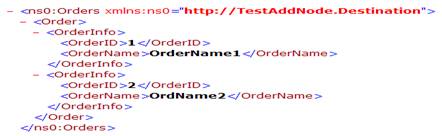 Note: Check I want the Ord1 and OrdName1 in OrderInfo as well as Ord2 and OrdName2 in OrderInfo too. So I need the value of above in one record (node) of Destination schema. So for to do the above functionality I have used the BizTalk map. What I have done is I have created a BizTalk map and assign Source.xsd in SourceSchema and Destination.xsd in Destination schema of this map.You can see the snap of my Mapping as follows:
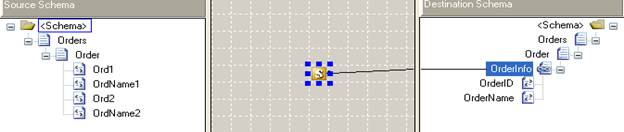 Here you can find that I have added just one script Functoids in the mapping of source and destination schema. I have written the following code (XSLT Code) to map both schemas.==========================================================================
==========================================================================So Test the map and check the generated destination file.Enjoy BizTalking:)
Now I want my destination schema in the following format:Note: Check I want the Ord1 and OrdName1 in OrderInfo as well as Ord2 and OrdName2 in OrderInfo too. So I need the value of above in one record (node) of Destination schema. So for to do the above functionality I have used the BizTalk map. What I have done is I have created a BizTalk map and assign Source.xsd in SourceSchema and Destination.xsd in Destination schema of this map.You can see the snap of my Mapping as follows:Here you can find that I have added just one script Functoids in the mapping of source and destination schema. I have written the following code (XSLT Code) to map both schemas.==========================================================================<xsl:for-each select="//Order">
<xsl:element name="OrderInfo">
<xsl:element name="OrderID"><xsl:value-of select="Ord1" /></xsl:element>
<xsl:element name="OrderName"><xsl:value-of select="OrdName1" /></xsl:element>
</xsl:element>
</xsl:for-each>
<xsl:for-each select="//Order">
<xsl:element name="OrderInfo">
<xsl:element name="OrderID"><xsl:value-of select="Ord2" /></xsl:element>
<xsl:element name="OrderName"><xsl:value-of select="OrdName2" /></xsl:element>
</xsl:element>
</xsl:for-each>
==========================================================================So Test the map and check the generated destination file.Enjoy BizTalking:)
Saturday, May 30, 2009
BizTalk: Message Assignment shape. Assign value from one Schema to another Schema.
We can assign one schema to another by many ways. But best way to assign values to one schema from another schema is to use the Message assignment Shape inside the Message Construct shape. Let’s take an example for it.
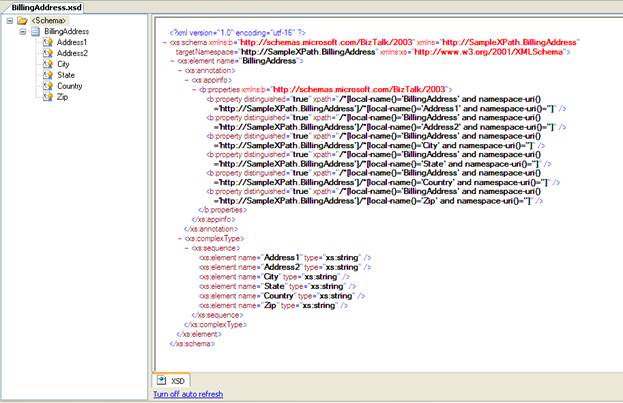
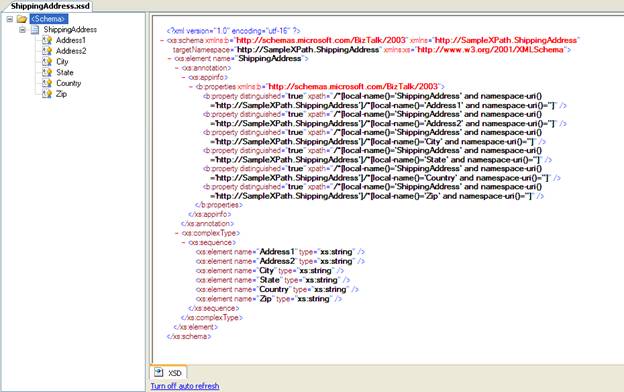
Example: Conversion of BillingAddress to ShippingAddress. For this I have two Schemas BillingAddress.xsd and ShippingAddress.xsd. All the elements of both schemas are promoted to Distinguished Fields, so that we can access them in message assignment shape. Both schemas are as follows:
BillingAddress.xsd
ShippingAddress.xsd:
Now I have created an orchestration, in which I am assigning the values of BillingAddress.xsd to ShippingAddress.xsd. For this I have created two messages msgBillingAddress and msgShippingAddress of BillingAddress.xsd and ShippingAddress.xsd types respectively. I have created a variable named varXmlDoc of System.Xml.XmlDocument type. My orchestration will look like the follows:
You can see in the image that there I have added a Receive Shape which will accept the msgBillingAddress and at the last you can see that I have added a Send Shape to send the ShippingAddress using msgShippingAddress. Between these two shapes(Receive & Send Shape), I have added a shape through which I am assigning values of BillingAddress to ShippingAddress message. And for this I have added a Construct shape and inside it I have added a Message Assignment Shape.
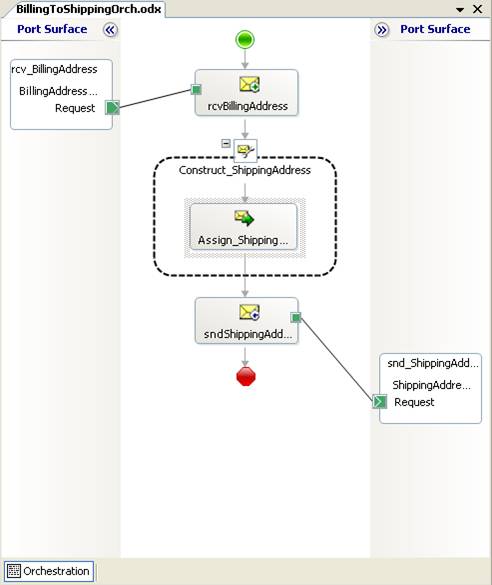
Now the purpose of this article is to share how to assign one message to another one. I have added the following code to assign BillingAddress to ShippingAddress message.
//Create a new object of XMLDocument. For this we will use the Variable created as XMLDocument.
varXmlDoc = new System.Xml.XmlDocument();
//We need to Load the variable with dummy XML.
//It can be same as generated instance.
//Note here we have to assign that instance that we need in target, not the //source schema.
varXmlDoc.LoadXml(@"<ns0:ShippingAddress xmlns:ns0=""http://SampleXPath.ShippingAddress"">
<Address1>Test Address1</Address1>
<Address2> Test Address2</Address2>
<City>Test City</City>
<State>Test State</State>
<Country>Test Country</Country>
<Zip>00000</Zip>
</ns0:ShippingAddress>");
//Assign XMLDocument varSmlDoc variable to ShippingAddress message.
msgShippingAddress = varXmlDoc;
//Assign data to each element
msgShippingAddress.Address1 = msgBillignAddress.Address1;
msgShippingAddress.Address2 = msgBillignAddress.Address2;
msgShippingAddress.City = msgBillignAddress.City;
msgShippingAddress.Country = msgBillignAddress.Country;
msgShippingAddress.State = msgBillignAddress.State;
msgShippingAddress.Zip = msgBillignAddress.Zip;
I think now you can understand how to assign one schema to another schema using Message Assignment shape in BizTalk Orchestration.
Let me know if you have any confusion in this article.
Tuesday, May 26, 2009
BizTalk : The configuration section for Logging cannot be found in the configuration source.
You will find this error while you will running / testing your orchestration. The error is telling that the configuration section for logging cannot be found in the configuration source.
So You will go to change your configuration file. I have done the same.
But it will not resolve your problem. The main problem is not in your application's configuration file. But the problem is in the BTSNTSvc.exe.config file, located in your installcation directory. So please enter the logging details in this file. Then test your Orchestration. I am sure it will resolve your problem.Cheers:)
I am adding the following(at 14th August,2008) after getting comments from some friends(E.R. Joell & PeteM). Thanks buddy:
We needs to add the following block in the BTSNTSVC.exe.config file (that you can find in C:/Program Files/Microsoft BizTalk Server 2006) inside the <configSections></configSections>:
======================================================
<section name="loggingConfiguration" type="Microsoft.Practices.EnterpriseLibrary.Logging.Configuration.LoggingSettings, Microsoft.Practices.EnterpriseLibrary.Logging, Version=3.1.0.0, Culture=neutral, PublicKeyToken=b03f5f7f11d50a3a" />
======================================================
And add the following block just after </ConsigSection>:
======================================================
<loggingConfiguration name="Logging Application Block" tracingEnabled="true"
defaultCategory="General" logWarningsWhenNoCategoriesMatch="true">
<listeners>
<add fileName="C:/log/testrolling.log" rollSizeKB="0" timeStampPattern="yyyy-MM-dd"
rollFileExistsBehavior="Increment" rollInterval="Day" formatter="Text Formatter"
header="----------------------------------------" footer="----------------------------------------"
listenerDataType="Microsoft.Practices.EnterpriseLibrary.Logging.Configuration.RollingFlatFileTraceListenerData, Microsoft.Practices.EnterpriseLibrary.Logging, Version=3.1.0.0, Culture=neutral, PublicKeyToken=b03f5f7f11d50a3a"
traceOutputOptions="DateTime, ProcessId" type="Microsoft.Practices.EnterpriseLibrary.Logging.TraceListeners.RollingFlatFileTraceListener, Microsoft.Practices.EnterpriseLibrary.Logging, Version=3.1.0.0, Culture=neutral, PublicKeyToken=b03f5f7f11d50a3a"
name="Rolling Flat File Trace Listener" />
<add listenerDataType="Microsoft.Practices.EnterpriseLibrary.Logging.Configuration.SystemDiagnosticsTraceListenerData, Microsoft.Practices.EnterpriseLibrary.Logging, Version=3.1.0.0, Culture=neutral, PublicKeyToken=b03f5f7f11d50a3a"
traceOutputOptions="DateTime, ProcessId" type="System.Diagnostics.TextWriterTraceListener, System, Version=2.0.0.0, Culture=neutral, PublicKeyToken=b77a5c561934e089"
name="System.Diagnostics TraceListener" initializeData="C:/Trace/TestTractListener.log" />
</listeners>
<formatters>
<add template="Timestamp: {timestamp}
title: {title}
Message: {message}
Category: {category}
priority: {priority}"
type="Microsoft.Practices.EnterpriseLibrary.Logging.Formatters.TextFormatter, Microsoft.Practices.EnterpriseLibrary.Logging, Version=3.1.0.0, Culture=neutral, PublicKeyToken=b03f5f7f11d50a3a"
name="Text Formatter" />
</formatters>
<categorySources>
<add switchValue="All" name="General">
<listeners>
<add name="Rolling Flat File" />
</listeners>
</add>
</categorySources>
<specialSources>
<allEvents switchValue="All" name="All Events" />
<notProcessed switchValue="All" name="Unprocessed Category" />
<errors switchValue="All" name="Logging Errors & Warnings">
<listeners>
<add name="Rolling Flat File Trace Listener" />
</listeners>
</errors>
</specialSources>
</loggingConfiguration>
====================================================
Once more thank to give me a such type of comments so that I can update my articles. I like this.
Regards,
Vijay Modi
So You will go to change your configuration file. I have done the same.
But it will not resolve your problem. The main problem is not in your application's configuration file. But the problem is in the BTSNTSvc.exe.config file, located in your installcation directory. So please enter the logging details in this file. Then test your Orchestration. I am sure it will resolve your problem.Cheers:)
I am adding the following(at 14th August,2008) after getting comments from some friends(E.R. Joell & PeteM). Thanks buddy:
We needs to add the following block in the BTSNTSVC.exe.config file (that you can find in C:/Program Files/Microsoft BizTalk Server 2006) inside the <configSections></configSections>:
======================================================
<section name="loggingConfiguration" type="Microsoft.Practices.EnterpriseLibrary.Logging.Configuration.LoggingSettings, Microsoft.Practices.EnterpriseLibrary.Logging, Version=3.1.0.0, Culture=neutral, PublicKeyToken=b03f5f7f11d50a3a" />
======================================================
And add the following block just after </ConsigSection>:
======================================================
<loggingConfiguration name="Logging Application Block" tracingEnabled="true"
defaultCategory="General" logWarningsWhenNoCategoriesMatch="true">
<listeners>
<add fileName="C:/log/testrolling.log" rollSizeKB="0" timeStampPattern="yyyy-MM-dd"
rollFileExistsBehavior="Increment" rollInterval="Day" formatter="Text Formatter"
header="----------------------------------------" footer="----------------------------------------"
listenerDataType="Microsoft.Practices.EnterpriseLibrary.Logging.Configuration.RollingFlatFileTraceListenerData, Microsoft.Practices.EnterpriseLibrary.Logging, Version=3.1.0.0, Culture=neutral, PublicKeyToken=b03f5f7f11d50a3a"
traceOutputOptions="DateTime, ProcessId" type="Microsoft.Practices.EnterpriseLibrary.Logging.TraceListeners.RollingFlatFileTraceListener, Microsoft.Practices.EnterpriseLibrary.Logging, Version=3.1.0.0, Culture=neutral, PublicKeyToken=b03f5f7f11d50a3a"
name="Rolling Flat File Trace Listener" />
<add listenerDataType="Microsoft.Practices.EnterpriseLibrary.Logging.Configuration.SystemDiagnosticsTraceListenerData, Microsoft.Practices.EnterpriseLibrary.Logging, Version=3.1.0.0, Culture=neutral, PublicKeyToken=b03f5f7f11d50a3a"
traceOutputOptions="DateTime, ProcessId" type="System.Diagnostics.TextWriterTraceListener, System, Version=2.0.0.0, Culture=neutral, PublicKeyToken=b77a5c561934e089"
name="System.Diagnostics TraceListener" initializeData="C:/Trace/TestTractListener.log" />
</listeners>
<formatters>
<add template="Timestamp: {timestamp}
title: {title}
Message: {message}
Category: {category}
priority: {priority}"
type="Microsoft.Practices.EnterpriseLibrary.Logging.Formatters.TextFormatter, Microsoft.Practices.EnterpriseLibrary.Logging, Version=3.1.0.0, Culture=neutral, PublicKeyToken=b03f5f7f11d50a3a"
name="Text Formatter" />
</formatters>
<categorySources>
<add switchValue="All" name="General">
<listeners>
<add name="Rolling Flat File" />
</listeners>
</add>
</categorySources>
<specialSources>
<allEvents switchValue="All" name="All Events" />
<notProcessed switchValue="All" name="Unprocessed Category" />
<errors switchValue="All" name="Logging Errors & Warnings">
<listeners>
<add name="Rolling Flat File Trace Listener" />
</listeners>
</errors>
</specialSources>
</loggingConfiguration>
====================================================
Once more thank to give me a such type of comments so that I can update my articles. I like this.
Regards,
Vijay Modi
Monday, May 25, 2009
The application is already precompiled.
You will get this error when you are going to build your Web Service. To resolve this error please first make sure no .keep file exist in you this web service. Please remove all .keep files and also move the PrecompiledApp.config file. Its resolve my problem. I think its the solution of this error.
Thursday, May 14, 2009
BizTalk Orchestration: How to assign Called Orchestration property of CallOrchestration shape:
When we have Orchestration in the same project, we can select it directly in Called Orchestration property of the CallOrchestration shape. But when we have called orchestration in reference assembly (Another Project), we need to set the Type Modifier property of that orchestration to Public. By default it is Internal. But to use any orchestration as Referece Assembly in another project for CallOrchestration shape, we need to set its Type Modifier property to public and one more thing that the receive shape of that called orchestration must not Activated(i.e. its Activate property should be False). So an so we can find that orchstration in CallOrchestration's reference assembly else not.
Saturday, May 9, 2009
Biztalk : How to comment the Shape used in orchestration?
I am working on Biztalk 2006 R2 and facing a big problem. I have created an orchestration and for temporary purpose I want to comment some shapes that I have used in this orchestration like we are commenting the code in .net. But I have not found any facility in Biztalk to do it. I think microsoft has to add this functionality in this technology. Let me know your reviews, if you want to add.
At this time to resolve this issue, I am using the decide shape and keeping all unwanted shapes in this decide shape which cannot execute. I have added such type of condition which will never true (i.e. 1==0). So at this time I can run my orchestration and can use those commented shapes(insude the above decide shape) in future if I want. Is it ok?
Let me know if you have any new idea.
Tuesday, May 5, 2009
ASP.Net + Access to the path 'C:\Inetpub\wwwroot\Test\images\upload\test.jpeg' is denied.
This error is coming when you are going to upload the file on specified folder. Here I am going to upload test.jpeg in upload folder. When I am going to upload I am getting the following error:
Access to the path 'C:\Inetpub\wwwroot\Test\images\upload\test.jpeg' is denied.
Solution:
For this you have to give the access to this folder. Please follow the steps to resolve this error:
1> Right click on upload folder. Click on properties.
2> Click on Security tab. You can find the window like following:

3> Click on Add button. You will find the following window.

4> Write the Everyone in the "Enter the objecdt names to select[Select]:" textarea.
5> Click on Check Name button and click on ok button.
6> Give full control rights to this Everyone user.
Now test your application. It will works fine.
Friday, May 1, 2009
Javascript + Replace forward slashes '/' with backward slashes '\'.
Hi friends,
Using following Javascript sysntax you can replace forward slashes ('/') with backward slashes ('\') :
Regardes,
Vijay
Using following Javascript sysntax you can replace forward slashes ('/') with backward slashes ('\') :
var strReplace = "C:\Temp\Temp1\Temp2\text.jpeg";
strReplace = strReplace.replace(new RegExp(/\\/g),"/");
Regardes,
Vijay
Subscribe to:
Comments (Atom)